
How To
Drop in your data. Get your score. Fix what matters. Data Quality Score just works. Select a topic below to get more details.
.png)
Select our product from the Atlassian market place and install.

Click the analyze button within your issue type.


Deeper understanding of how to use review the results and next steps.
.png)
Data files formats accepted (*.xlsx), (*.json), or (*.csv)

My data file results are not returned. Results are incorrect.
Installation
1. Find Data Quality Score for Jira
From the Atlassian Market Place you can search for the Data Quality Score for Jira or click the link. https://marketplace.atlassian.com/apps/345619035
2. Try it free
Select your site to install
3. Click Review
Verify your installation and permissions
4. Get It Now
Verify installation completes.
5. From your Jira select (Apps) click "..." elipses
This will open the menu with Manage Apps
6. Click Manage Apps
You will see the Jira admin settings. Data Quality Score for Jira will be listed under "Apps"
7. Click Data Quality Score for Jira - App
Congratulations Data Quality Score for Jira was successfully installed.
Review Usage (Admin)
1. From your Data Quality Score for Jira admin settings "see above"
2. Subscription & Usage Information
3. Review your current plan

Select A Data File
Data Quality Score for Jira can analyze data files in CSV, JSON, or XLSX formats with ease.
A CSV (Comma-Separated Values) file is a simple text format used to store tabular data. Each row represents a record, and each column is separated by a comma. The first row usually contains column headers that describe the data fields.
CSV - Example of csv structure
Name,Email,Country
Jane Doe,jane@email.com,USA
John Smith,john@email.com,Canada
CSV
JSON
A JSON (JavaScript Object Notation) file is a structured format used to store and exchange data. It organizes information using key–value pairs and objects or arrays. Keys describe the field name, and values hold the data.
json - Example of json structure
{
"name": "Jane Doe",
"email": "jane@email.com",
"country": "USA"
}
Excel
Excel (.xlsx) is a spreadsheet file used to store and organize data in rows and columns within worksheets. The first row usually contains column headers that describe each data field. Each row below represents a record.
xlsx - Example of excel structure
Name | Email | Country
Jane Doe | jane@email.com | USA
John Smith | john@email.com | Canada
Open Data Quality Score from Jira
From Jira you will now open Data Quality Score
1. Select your issue type "Story"
2. Data Quality Score app will now be visible
3. Click the app to see Data Quality Score under related work

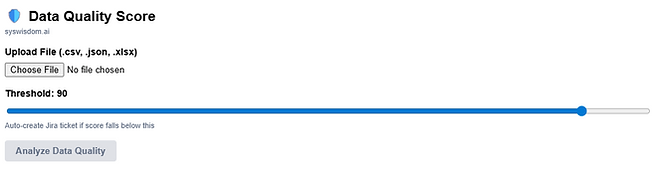
Choose file to Analyze
01
Click Choose File from an issue type (story, epic, etc)
02
Navigate to your data file location
03
Select your file and open it
04
Selected file name is shown under Choose File

Analyze Data Quality
"Analyze Data Quality" button is a one-click solution to instantly assess data quality across Completeness, Consistency, and Validity, all without leaving your Jira issue.
Data Quality Score Process Flow
Step 1: File Preparation (Frontend)
-
The system reads your uploaded file (.csv, .json, or .xlsx)
-
Converts the file into a compressed format that can be transmitted
-
Collects the context: Quality threshold score (default: 90)
Step 2: Backend Processing
-
Your request travels to our backend resolver
-
The system retrieves your Data Quality API key (stored securely)
-
Converts your file into a special multi-part format that the analysis engine understands
Step 3: Analysis
-
Your file is sent to the syswisdom.ai Data Quality API
-
The API examines every cell, row, and column of your data
-
Returns three core quality scores (0-100):
Data Elements that we score:
- Completeness: How many required fields are populated? Missing values?
- Consistency: Are data formats uniform? Do values follow expected patterns?
- Validity: Are values accurate and within acceptable ranges?
Step 4: Overall Score Calculation
-
The system combines all three scores into an Overall Score
-
Displays your quality status with color coding:
-
🟢 Green (90+): PASS - High quality data
-
🟡 Amber (70-89): REVIEW NEEDED - Some issues found
-
🔴 Red (<70): FAIL - Significant quality problems
-
Step 5: Issue Detection & Storage
-
The system lists specific data problems found (columns, invalid values, missing data)
Step 6: Results Display
-
You see the three scores displayed in real-time
-
You can copy the analysis results as a comment for your team
-
Results persist on the issue for future reference
Data Quality Score for Jira "Results"
When to Create a Defect: Results Interpretation Guide
Example - Results for a simple "JSON" file

Overall Score Thresholds:
-
90+ (GREEN/PASS): No defect needed. Data meets quality standards.
-
70-89 (AMBER/REVIEW): Create defect only if consistency issues found. Route to Data Engineer/Scientist.
-
<70 (RED/FAIL): Always create defect. Escalate immediately.
Example: Scoring Breakdown -> Route Accordingly:
Score | Issue Type | Route To | Action |
|---|---|---|---|
Validity | Invalid values, out-of-range data | Data Engineer/Scientist initially; Full-Stack if application-generated | Check source quality OR application logic error |
Consistency | Mixed data types (like your Email field) | Data Engineer/Scientist | Standardization issue fix schema/validation |
Completeness | Missing required fields | Data Engineer/Scientist | Source data gap configure upstream ETL |
In our example above (93.44 overall):
✅ No defect needed - Consistency dip (80) is isolated to Email/Purchase Date and doesn't break thresholds. Document for next ETL review.
Quick Rule:
-
Defect trigger: Overall < 70 OR Consistency < 70 with identified column issues
-
No defect: Overall ≥ 90 (passes quality gate)
-
Gray zone (70-89): Discuss with data team; log for tracking if recurring
Common Issues
Common Issues & Fixes
1. API Not Configured or Expired
Error: "API key not configured"
Fix:
-
Jira Admin → Data Quality app settings
-
Enter valid API key from syswisdom.ai
-
Contact admin if key expired (rotate per API_KEY_ROTATION_GUIDE.md)
2. JSON File Upload Fails
Error: File uploads but analysis returns no score
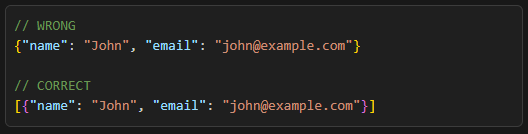
Problem: JSON must be an array of objects [{...}, {...}], not a single object {...}
Fix:
3. Malformed CSV/XLSX
Error: Analysis incomplete or low validity score
Fixes:
-
Missing headers: First row must contain column names
-
Mixed data types: Ensure each column has consistent data (no text in number columns)
-
Special characters: Escape quotes/commas in CSV cells
-
Encoding: Save as UTF-8
4. File Size Exceeds Limit
Error: Upload rejected
Fix: Maximum 25MB. Split large files or sample data before upload.